
Terminal, SSH & logs
Sooner or later you’ll want to type a command yourself: run a migration, install a package, look at a file. For that you don’t need to log into the server itself. Envoryx gives you a shell inside the project’s containers, in the browser or over SSH.
Browser terminal
Section titled “Browser terminal”The project’s Terminal section opens a shell (xterm.js) in any container of the project. In the application containers - PHP, Python, Go, Ruby, Java, .NET, Node.js and the workers - you’re the project owner (PUID/PGID), you start out in the project directory /var/www/html, and the project’s environment variables are all there. That’s the place for composer, npm, pip, go, bundle, rails, mvn, dotnet and friends.
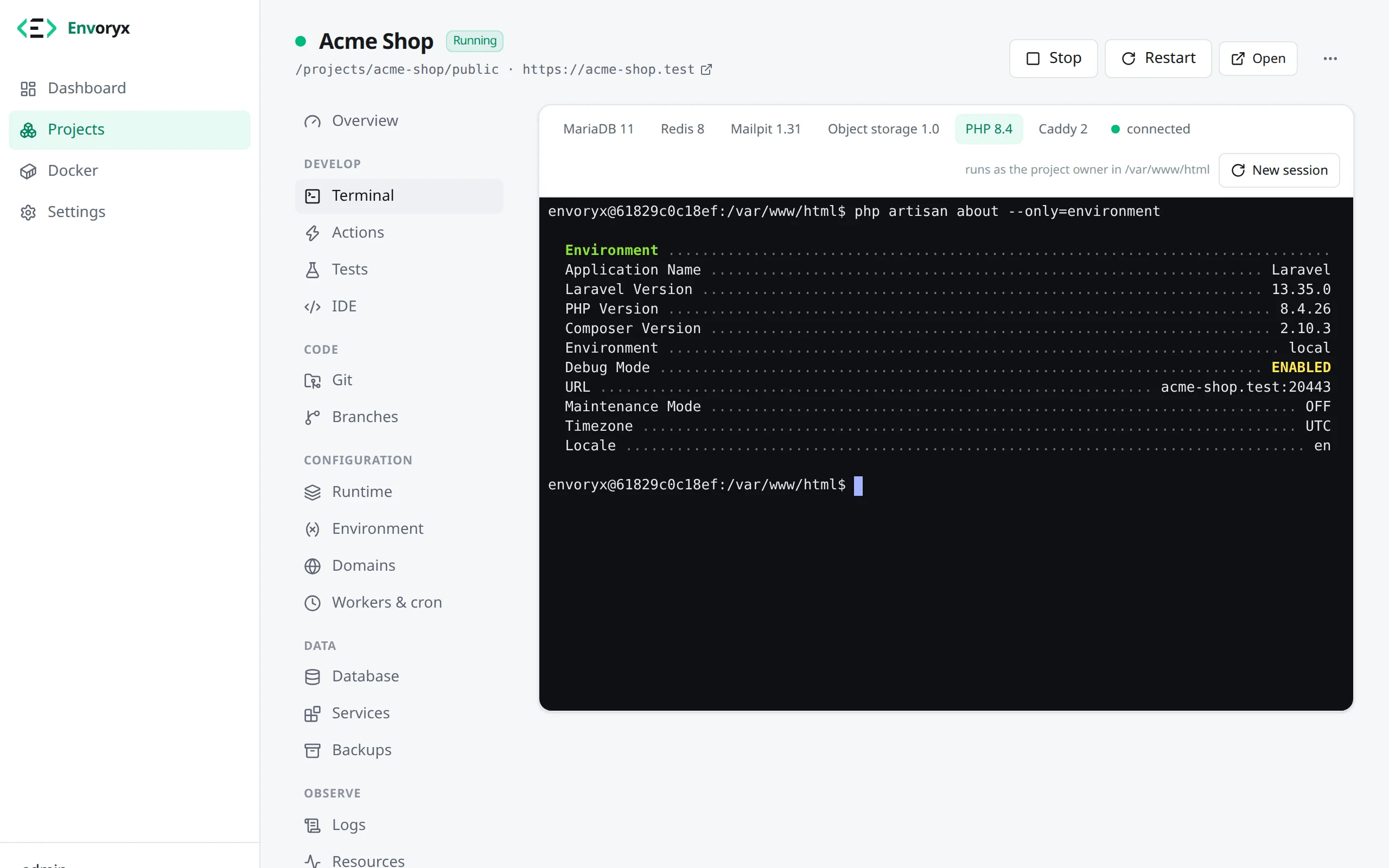
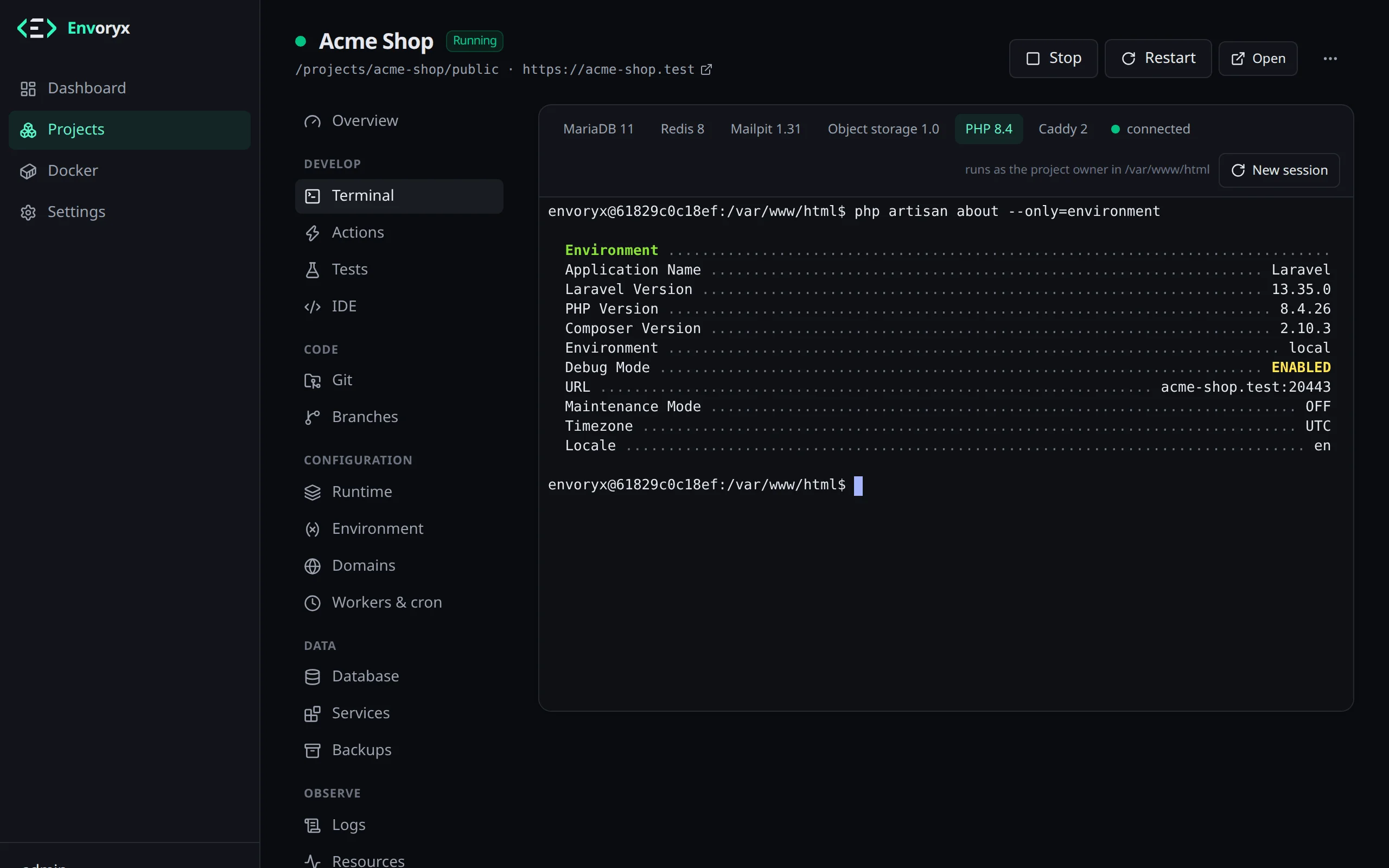
If you’d rather use your own terminal, you get the same shell over SSH. Files move over the same login, with an SFTP client, scp or rsync, since every runtime image has rsync:
ssh -p 2222 shop@<envoryx-host> # the application containerssh -p 2222 shop.node@<envoryx-host> # a specific runtime containerrsync -av -e 'ssh -p 2222' ./uploads/ shop@<envoryx-host>:/var/www/html/public/uploads/The password is an API token from Settings → API tokens & MCP, or you store your public key under Settings → SSH keys. More on this, including the IDE setups, is on the IDE integration page.
SFTP and scp start in the project directory, the same place an ssh login lands in, so scp dump.sql shop@<envoryx-host>: puts the file right next to your composer.json. JetBrains IDEs are the one exception. They put their helpers into the start directory, so for them it’s still the home /home/envoryx, and the helpers stay out of your project.
A static site has no container to run commands in. Its login still gives you SFTP, and with it scp, for the files; a shell or rsync ends with a message saying why there’s none.
Locked out?
Section titled “Locked out?”Envoryx counts failed logins so nobody can guess tokens forever. Only real guesses count, though: a wrong or unknown API token. The keys your agent offers before the password don’t, and neither does the empty password OpenSSH sends when it can’t prompt for one. Ten failures from one address for the same SSH user, that is for one project, lock that address out of that project for five minutes. A colleague behind the same NAT who works on another project carries on undisturbed. Someone trying many project names from one address still gets stopped: 30 failures over all projects lock out the whole address. Failures are forgotten ten minutes after the first one, so a few typos over the day never add up, and a successful login clears the count for its project.
While the lockout lasts, every login is refused, correct ones included, otherwise a guesser would learn when it hit. ssh then shows Envoryx: too many failed logins from your address - try again in 5 min. instead of a bare Permission denied, so you know to wait rather than to look for a wrong key.
Running a command from a script
Section titled “Running a command from a script”For deploy scripts and CI jobs there’s envoryx project exec. It runs one command in a container and hands its exit code back to your shell, so a failing migration makes your script fail too:
envoryx project exec shop -- php artisan migrate --forceenvoryx project exec shop --service node -- npm run buildenvoryx project exec shop -- sh -c "cat > /tmp/x" < file # stdin is piped in (up to 512 KiB)Stdout and stderr stay separate, and the command runs as the project owner in the project directory. For an interactive shell or a large pipe, SSH is the better tool. The command line page has the rest.
If you’re on the host anyway and reach for docker exec, give it the user. Without -u you’re root in the PHP container, and whatever you create there, say a var/cache from clearing the cache, then belongs to root, so the project user can’t overwrite it later and the site starts throwing permission errors. Use the PUID/PGID of your installation (1000 unless you set them):
docker exec -it -u 1000:1000 -w /var/www/html envoryx-shop-php shWhen something doesn’t work, the Logs section is usually the first place to look. It has two views for each container. Live follows the output as it comes in; you can pause, search and filter by level. History is for looking back: pick a time range, search for text, filter by level, and you get a chart of lines, warnings and errors over time (click a bar to zoom in). Below it are the most frequent errors and warnings, grouped so that the same message with different numbers or ids counts only once. Download saves every matching line.
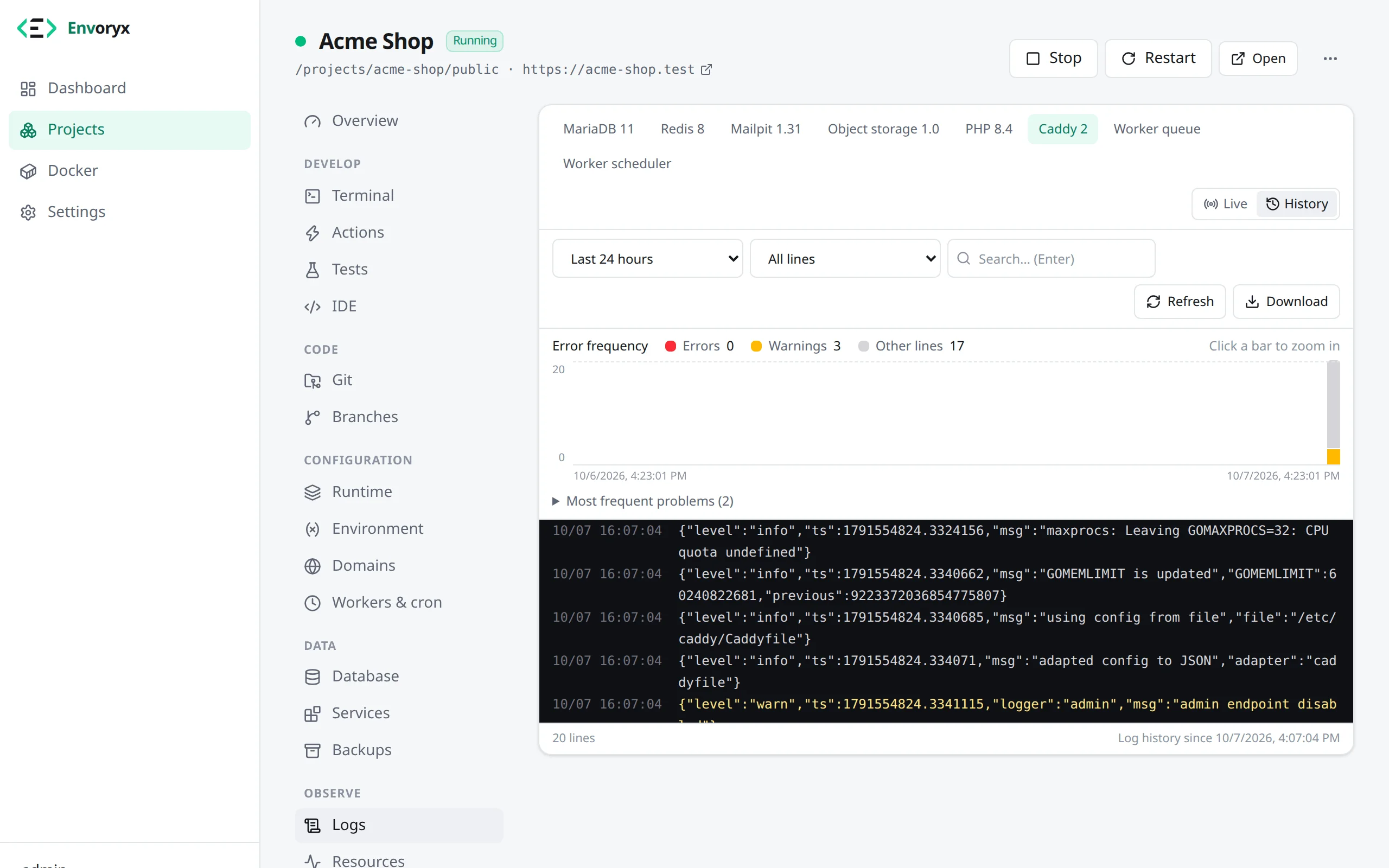
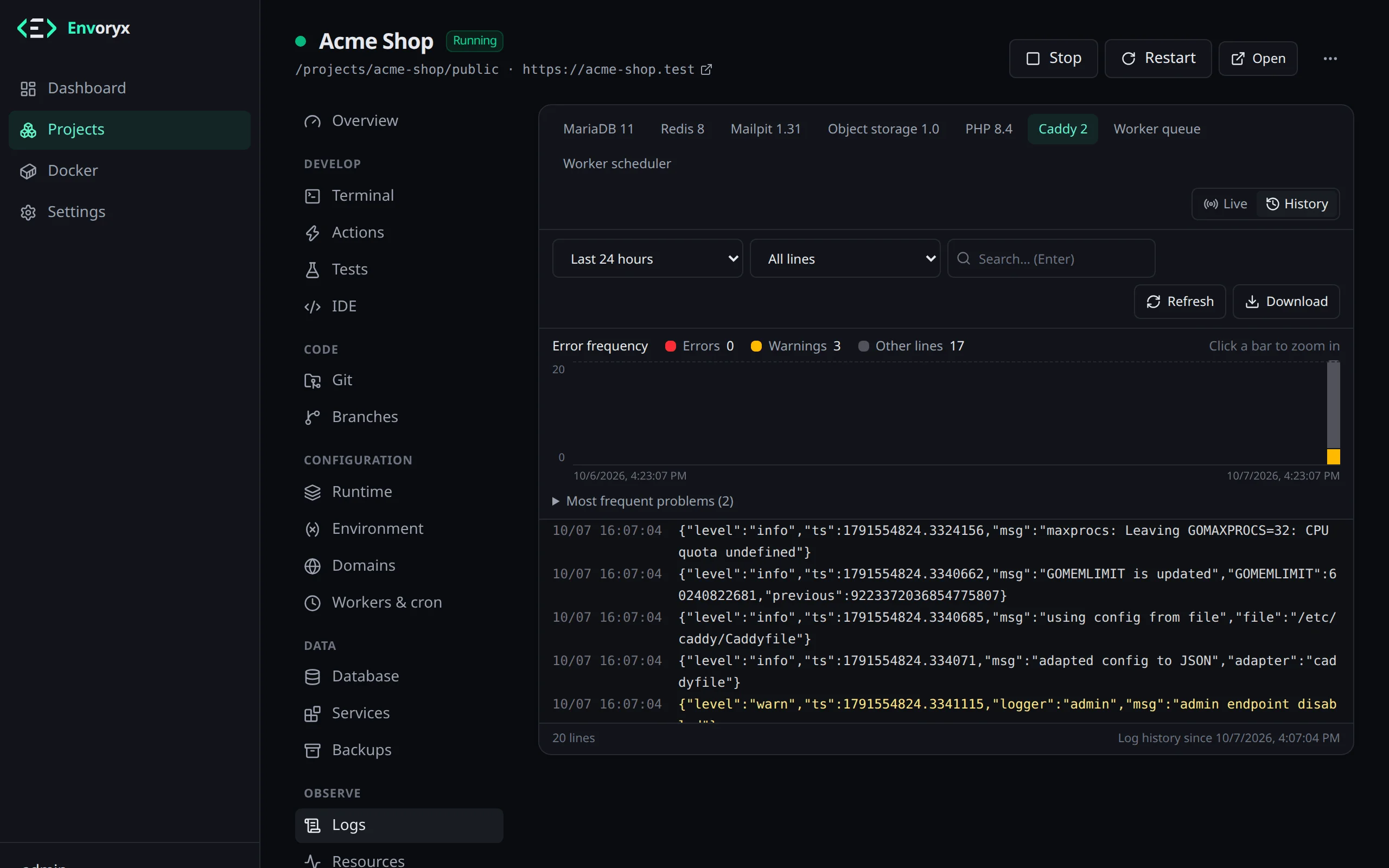
Containers don’t report a log level, so Envoryx guesses it from the text. Fatal error, [error], ERROR:, Exception, Traceback, a level field in JSON or logfmt, or a 5xx status in an access log count as errors; Warning, [warn] and Deprecated count as warnings.
Log history
Section titled “Log history”Docker only keeps a container’s output as long as the container exists. Recreate it, and the old output is gone. That’s why Envoryx copies the output of every project container into /config/logs/ while it’s being written, so the history survives restarts and recreated containers.
Finished days are compressed. By default Envoryx keeps 7 days and at most 1 GB for all projects together; you can change both under Settings → Retention → Log history, which also shows how much space the logs take. Deleting a project deletes its history as well, and Delete stored logs empties all of it. The log history isn’t part of instance backups.
From a script it looks like this:
envoryx project logs shop --service php --tail 200 --followenvoryx project logs shop --since 6h --level error --grep "SQLSTATE" -o errors.log